Pending Changes
The Pending Changes feature in Accurids manages how data modifications made through the Editing Module progress through a multi-stage approval and release process. This ensures data quality and maintains a clear audit trail of all changes.
Lifecycle Stages
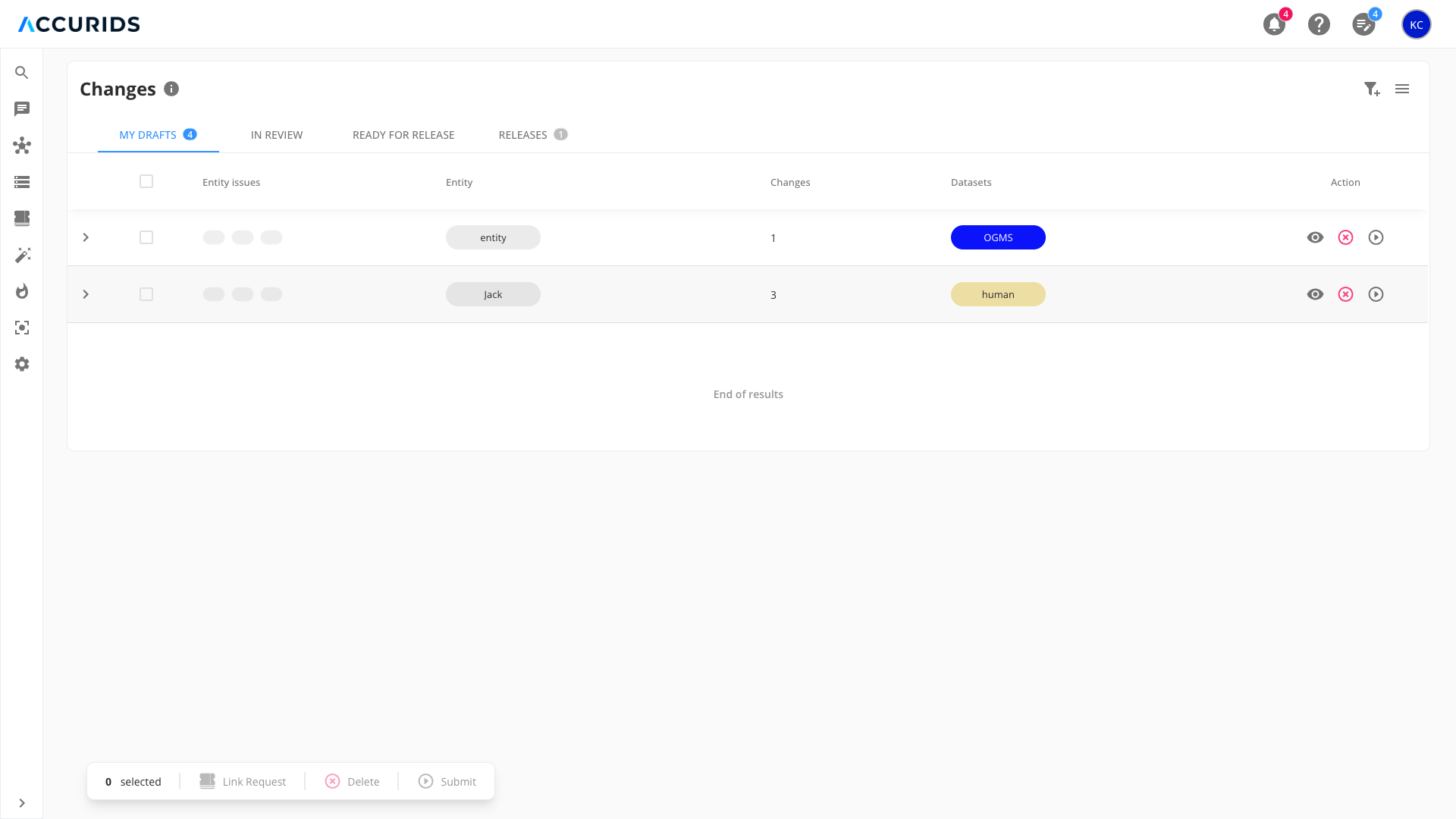
1. Draft Stage
- Located in the "My Drafts" tab
- Visible only to the author
- Changes are private and can be modified freely
- Represents the initial working stage of data modifications
2. Submitted Stage
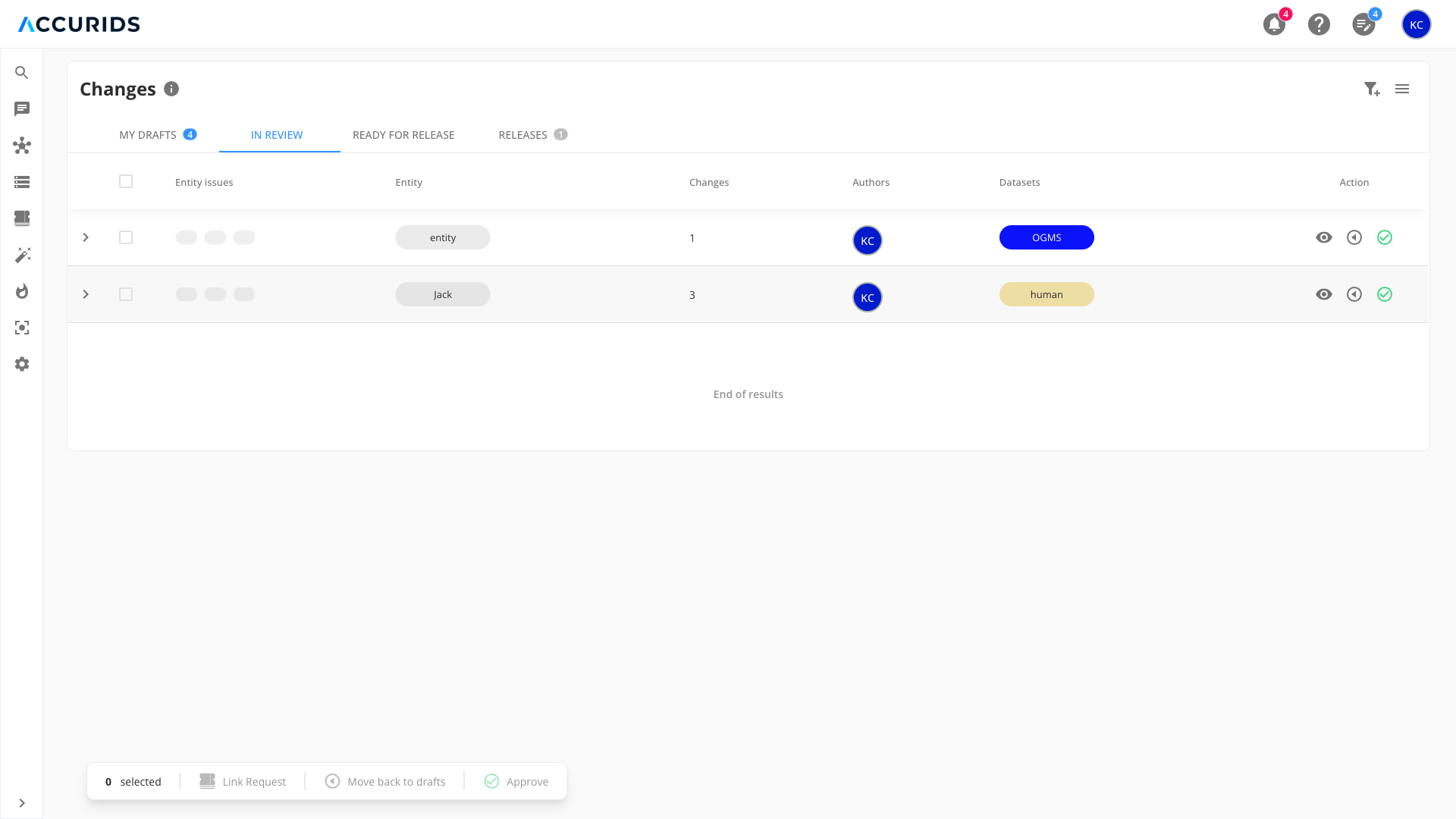
- Found in the "In Review" tab
- Visible to all users with "contributor" or "admin" roles
- Indicates changes are ready for review
- Authors can no longer modify changes directly
3. Approved Stage
- Located in the "Ready for Release" tab
- Visible to all users with "contributor" or "admin" roles
- Indicates changes have passed review
- Changes are queued for publication

4. Published Stage
- Found in the "Releases" tab
- Changes are applied to the dataset
- Grouped by release
- Provides historical record of all implemented changes
Interface Layout
Tab Navigation
- Four tabs at the top of the interface:
- "MY DRAFTS"
- "IN REVIEW"
- "READY FOR RELEASE"
- "RELEASES"
Each tab displays a count indicator showing the number of changes in that particular stage. These counters automatically update to reflect the current filter configuration, helping users quickly understand how many changes match their selected criteria across all stages of the workflow.
Table Structure
The main table displays pending changes with columns that vary by tab:
Common columns (My Drafts, In Review, Ready for Release tabs):
- Show changes: Expandable button to view detailed changes for an entity
- Checkbox: Column for row selection
- Entity issues: Indicators showing the count of different types of issues. These include both entity-level (global) issues and property-level issues from individual changes within the scope
- Entity: The entity being modified
- Changes: Number of changes associated with the entity
- Datasets: Dataset(s) the entity belongs to
- Action: Row-level actions
Additional columns by tab:
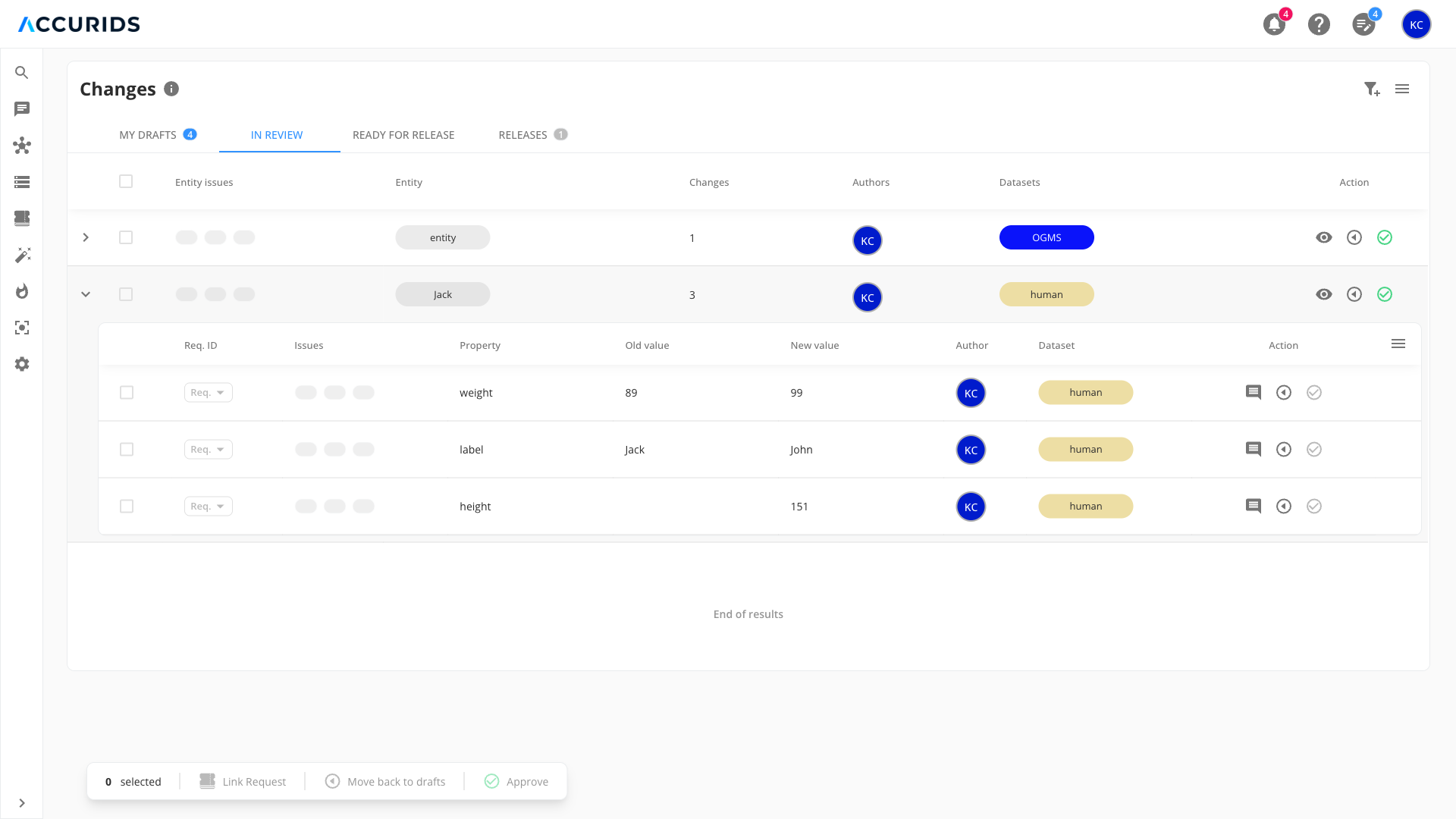
- In Review tab: Adds Authors column showing user(s) who created the changes
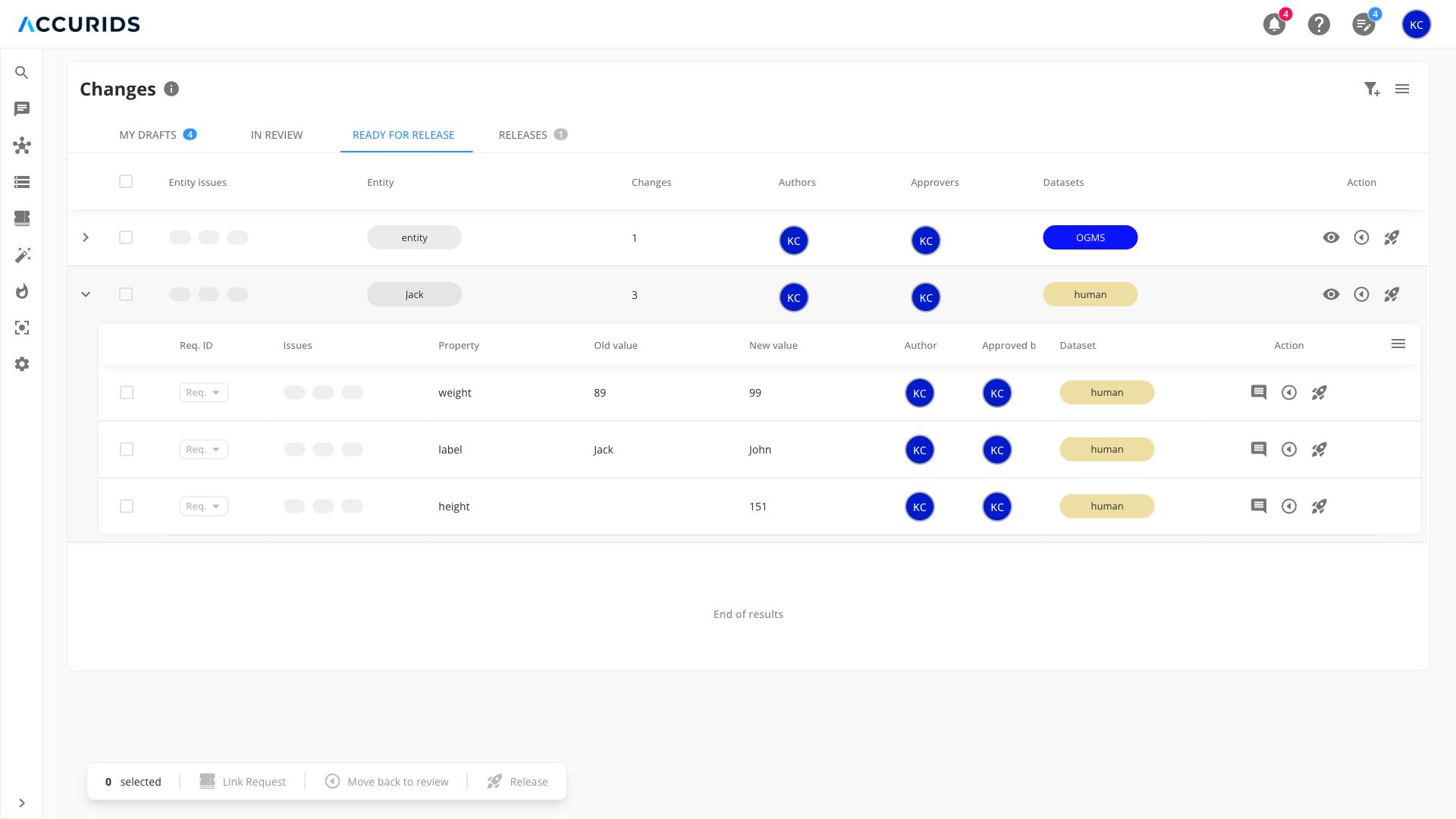
- Ready for Release tab: Adds Authors and Approvers columns showing user(s) who created and approved the changes
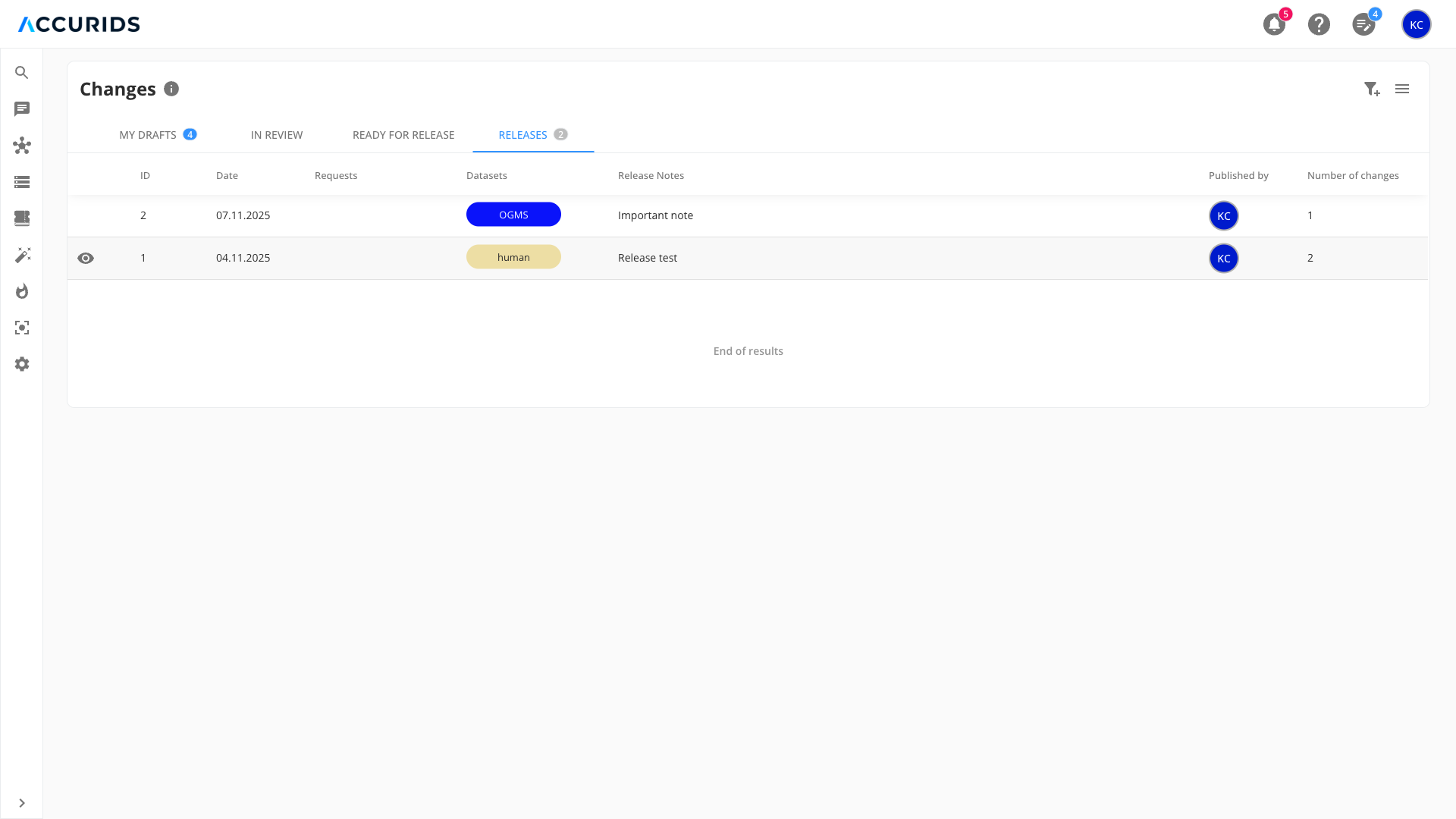
Releases tab Overview:
- Action: Eye icon to view release details
- ID: Release identifier
- Date: Date of release
- Requests: Related workflow request numbers
- Datasets: Affected datasets
- Release Notes: Notes provided during release
- Published by: User who published the release
- Number of changes: Total changes in the release
Expandable Rows
Each entity row can be expanded to view detailed property-level changes. To expand or collapse a row, you can:
- Click the "Show changes" button in the first column, or
- Click anywhere else in the entity row (except on action buttons)
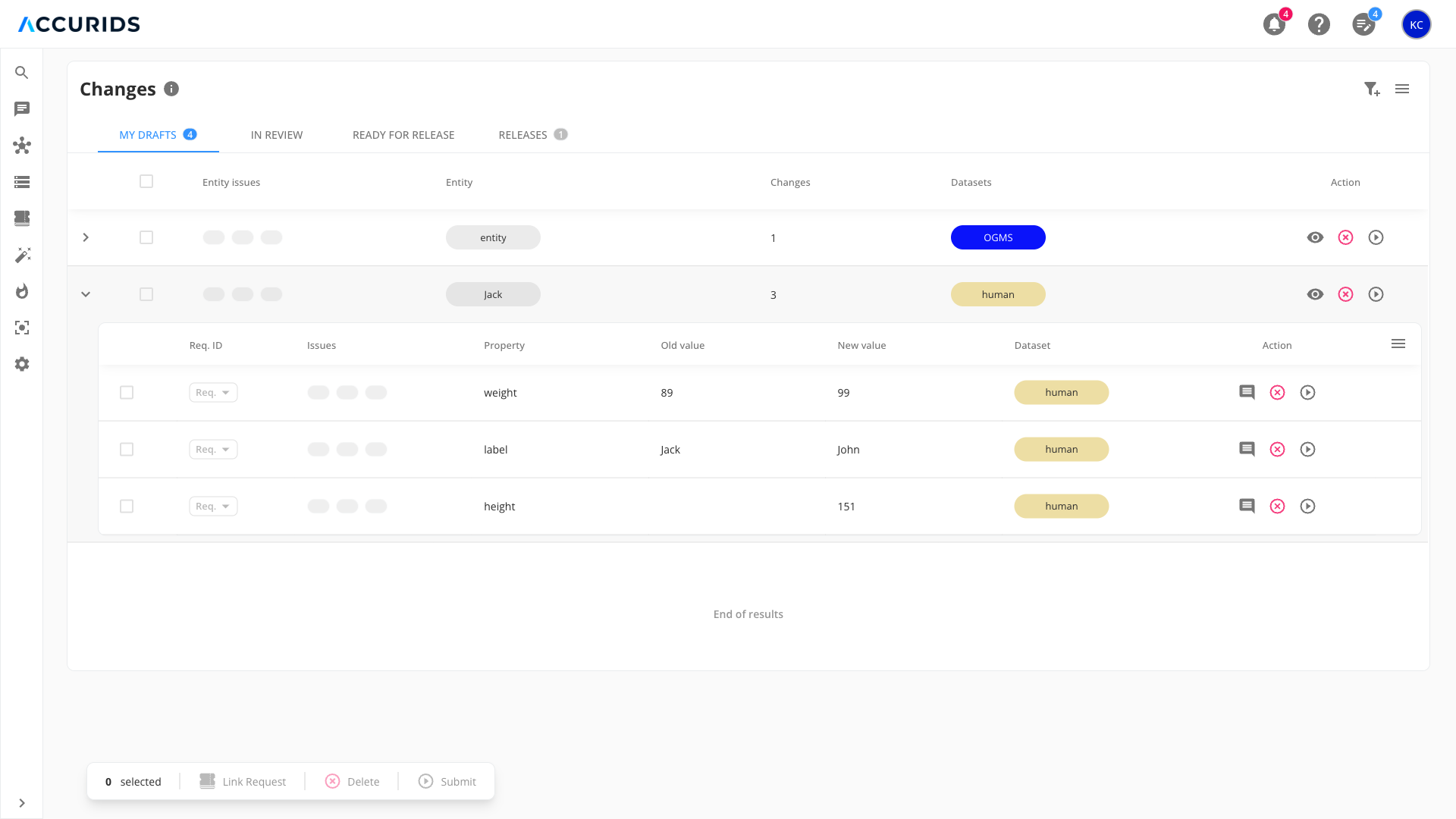
When expanded, the row displays a nested table showing individual property changes with the following columns:
Common columns (My Drafts, In Review, Ready for Release tabs):
- Checkbox: For selecting individual property changes
- Req. ID: Workflow request identifier (clickable to assign, change or create a request)
- Issues: Indicators showing the count of different types of issues for each property change
- Property: The property being changed
- Old value: Previous value of the property
- New value: Updated value of the property
- Dataset: Dataset(s) the entity belongs to
- Action: Individual action buttons for each property change. Available actions vary by stage: Submit (My Drafts), Approve (In Review), or Release (Ready for Release). Button state depends on whether the changes can be accepted or not
Additional columns by tab:
- In Review tab: Add Author column showing the user who created the property change
- Ready for Release tab: Adds Author and Approved by column showing the user who created and approved the property change
This expanded view allows users to review all property-level changes associated with an entity before taking action. Each property change can be managed individually or as part of the entity group.
My Drafts tab - Expanded view:
In Review tab - Expanded view:
Ready for Release tab - Expanded view:
Action Column
Actions are available at two levels: entity level (in the main table) and property level (in the expanded view). The available actions vary by tab and level.
Entity-Level Actions
Actions available on entity rows in the main table:
Common Actions (All Tabs):
- See change: Eye icon for navigating to the Global Entity View (in Releases tab: opens release details)
Stage Transition Actions:
-
My Drafts:
- Delete: Removes all changes for the entity
- Submit: Moves all changes for the entity to review stage
-
Other Workflow Tabs (In Review, Ready for Release):
- Move back icon for returning to previous stage
- Forward arrow for advancing to next stage (approve or release)
Property-Level Actions
Actions available on individual property changes in the expanded view:
Common Actions (All Tabs):
- Comment: Icon for accessing the discussion thread for the specific property change
Stage Transition Actions:
-
My Drafts:
- Delete: Removes the individual property change
- Submit: Moves the individual property change to review stage
-
Other Workflow Tabs (In Review, Ready for Release):
- Move back icon for returning the property change to previous stage
- Forward arrow for advancing the property change to next stage (approve or release)
Note: Property-level actions allow you to manage individual changes independently, while entity-level actions apply to all changes associated with that entity.
Validation Popup
When submitting, approving, or releasing changes, a validation popup appears that categorizes all selected changes into tabs based on their validation status. This popup helps users understand which changes can be processed and which require attention.
The popup displays the following tabs:
Data Quality Issues Tab
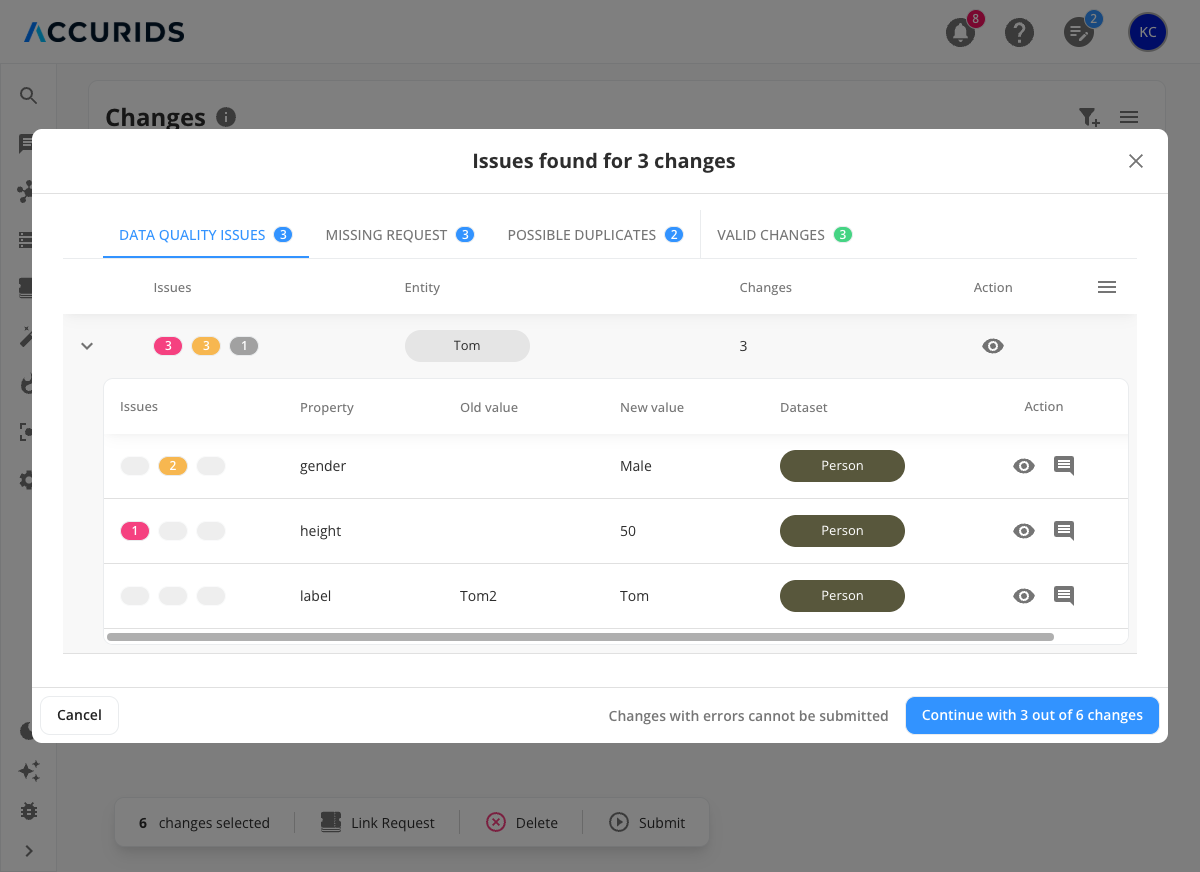
This tab shows entities and property changes that have data quality issues (errors, warnings, or notes). When expanded, each entity displays a nested table showing individual property changes with their specific issues.
The tab displays:
- List of entities with data quality issues. The entity-level view shows the following columns:
- Issues: Total counts of errors (red), warnings (orange), and notes (grey). These include both entity-level (global) issues and property-level issues from individual changes within the scope
- Entity: The entity being modified
- Changes: Number of changes associated with the entity
- Action: Eye icon to view the entity
- Expanded view reveals individual property changes with the following columns:
- Issues: Badges indicating the number of errors (red), warnings (orange), and notes (grey) for each property change
- Property: The property being modified
- Old value: Previous value (if applicable)
- New value: Updated value
- Dataset: Dataset(s) the entity belongs to
- Action: Eye icon to view the entity and comment icon to access the discussion thread
See Data Quality Validation for more details.
Missing Request Tab
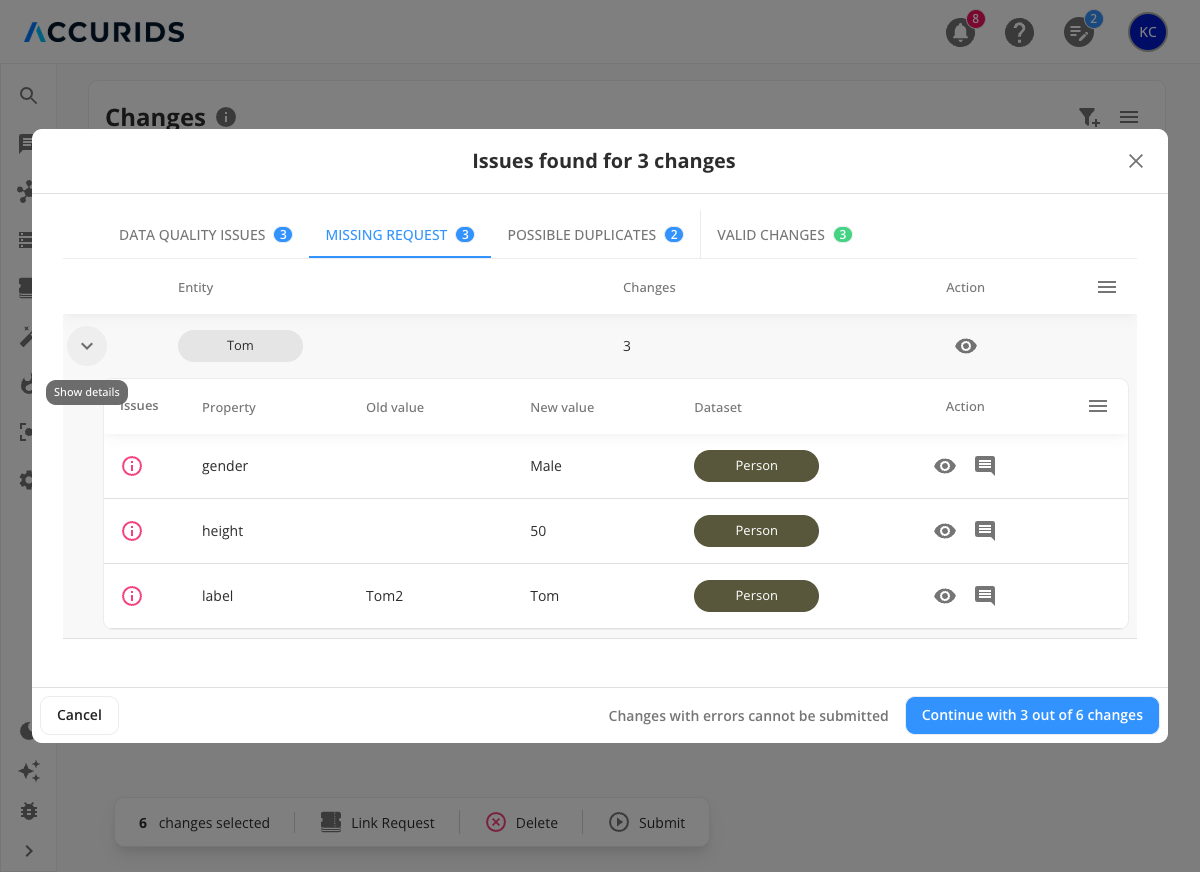
This tab displays changes that are missing a workflow request assignment. All changes in this tab require a request to be assigned before they can be submitted.
The tab displays:
- List of entities with changes that don't have a request assigned. The entity-level view shows the following columns:
- Entity: The entity being modified
- Changes: Number of changes associated with the entity
- Action: Eye icon to view the entity
- Expanded view shows individual property changes with the following columns:
- Issues: "Request is required" indicator (red information icon)
- Property: The property being modified
- Old value: Previous value (if applicable)
- New value: Updated value
- Dataset: Dataset(s) the entity belongs to
- Action: Eye icon to view the entity and comment icon to access the discussion thread
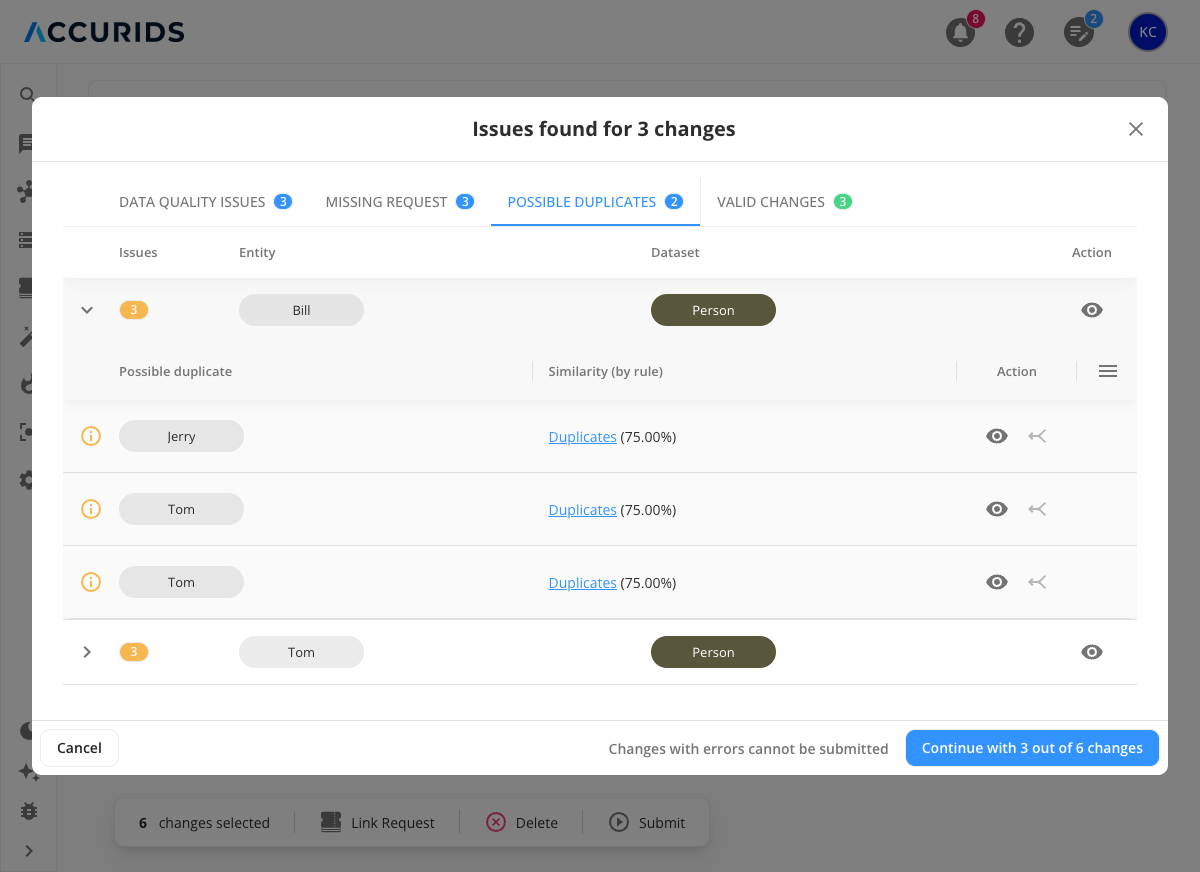
Possible Duplicates Tab
This tab identifies entities that may be duplicates of existing entities in the system. It helps prevent creating duplicate records.
The tab displays:
- List of entities with potential duplicate warnings. The entity-level view shows the following columns:
- Issues: Number of duplicates for the entity
- Entity: The entity being modified
- Dataset: Dataset(s) the entity belongs to
- Action: Eye icon to view the entity
- Expanded view shows:
- Possible duplicate: Name of the existing entity that may be a duplicate
- Similarity (by rule): Percentage similarity and a link to the duplication check rule that identified the match. Multiple rules can detect the same duplicate, and if no rule is configured, AI Matcher may be listed
- Action: Eye icon to view the existing entity and a merge icon (the icon varies depending on the stage) to compare and merge the new duplicate entity into the existing one. For more information, see Compare and Merge Entities
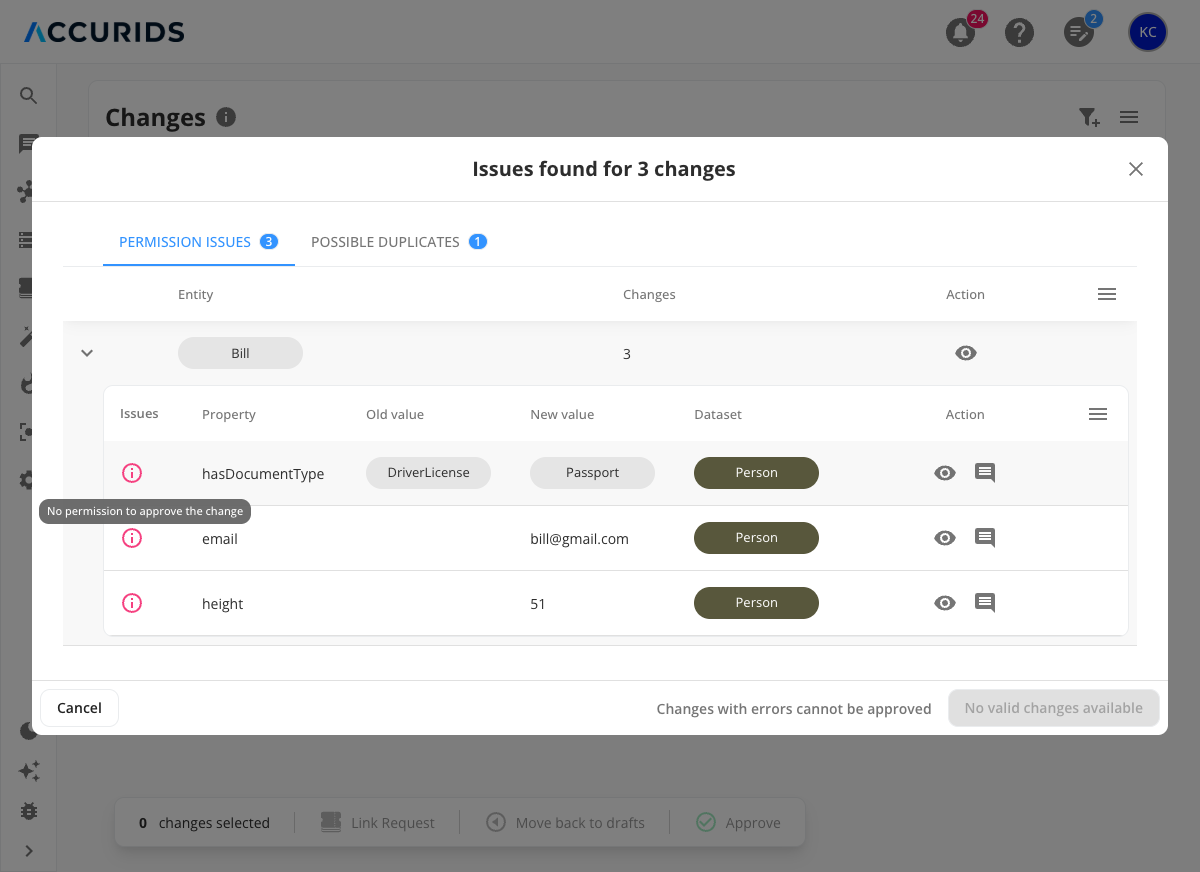
Permission Issues Tab
Note: This tab appears only in the In Review and Ready for Release tabs when attempting to approve or release changes without the necessary permissions.
This tab displays changes that cannot be approved or released due to insufficient user permissions. When expanded, each entity displays a nested table showing individual property changes with permission issues.
The tab displays:
- List of entities with changes that require permissions the user doesn't have. The entity-level view shows the following columns:
- Entity: The entity being modified
- Changes: Number of changes associated with the entity
- Action: Eye icon to view the entity
- Expanded view shows individual property changes with the following columns:
- Issues: Red information icon with tooltip "No permission to approve the change"
- Property: The property being modified
- Old value: Previous value (if applicable)
- New value: Updated value
- Dataset: Dataset(s) the entity belongs to
- Action: Eye icon to view the entity and comment icon to access the discussion thread
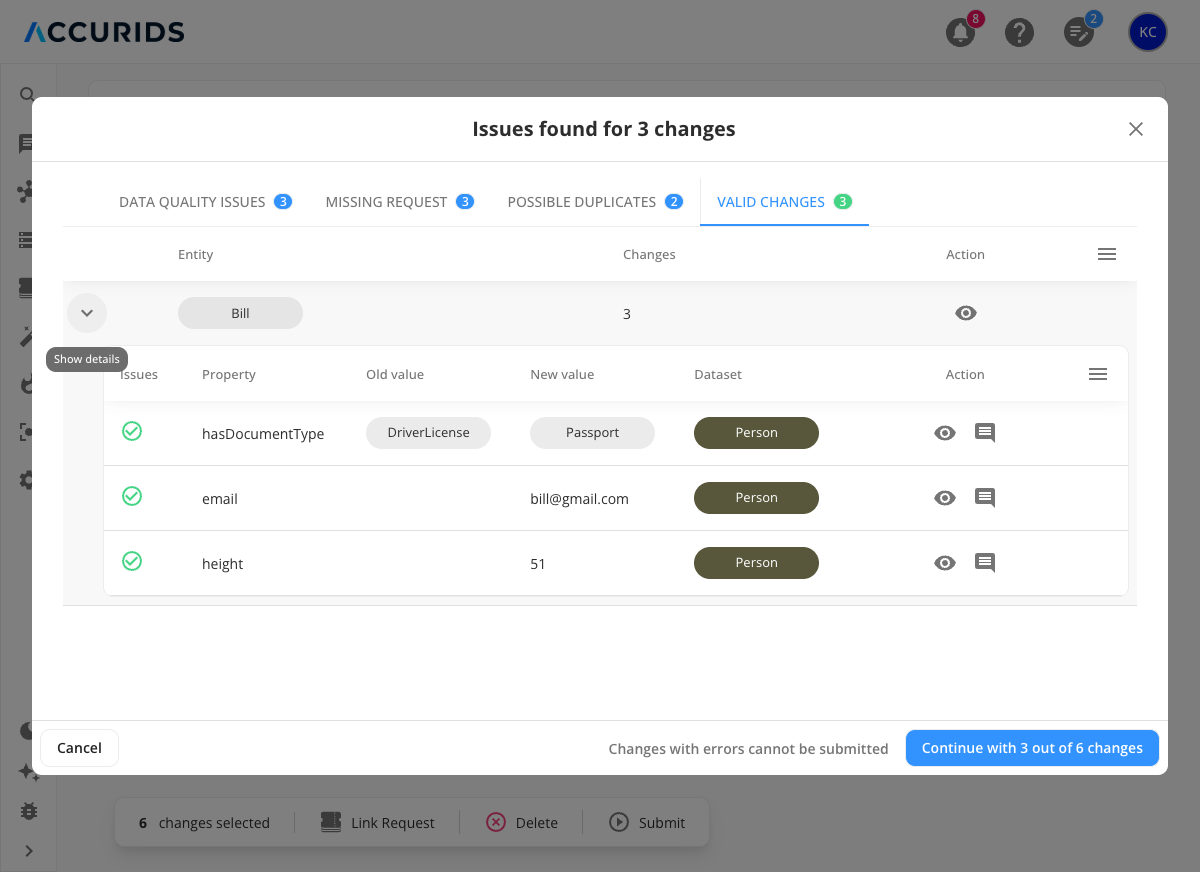
Valid Changes Tab
This tab displays changes that have passed all validation checks and are ready to be submitted. These changes have no errors or permission issues, and have assigned requests (if required).
The tab displays:
- List of entities with valid changes ready for submission. The entity-level view shows the following columns:
- Entity: The entity being modified
- Changes: Number of changes associated with the entity
- Action: Eye icon to view the entity
- Expanded view shows individual property changes with the following columns:
- Issues: Green checkmark indicating no issues, yellow indicator for warnings, or grey indicator for notes. All of these can be submitted despite the presence of warnings or notes
- Property: The property being modified
- Old value: Previous value (if applicable)
- New value: Updated value
- Dataset: Dataset(s) the entity belongs to
- Action: Eye icon to view the entity and comment icon to access the discussion thread
Popup Footer:
- Cancel button: Closes the popup without submitting
- Continue button: Allows submission of only the valid changes (changes with errors cannot be submitted). The button text indicates how many changes will be submitted (e.g., "Continue with 3 out of 6 changes")
Filtering and Controls
The top-right section of the interface contains powerful filtering tools:
- Dataset filtering (e.g., "doid") allows users to focus on changes within specific datasets
- Request filtering (e.g., "#4") enables filtering by workflow request number
- "Clear all filters" button provides a quick way to reset all applied filters
- Additional filter options are accessible via the funnel icon, revealing more detailed filtering criteria
- Menu options via hamburger menu provide access to additional features and settings
Bulk Actions
A bulk action bar is always visible at the bottom of the table with:
- Selection count indicator (e.g., "2 changes selected") showing how many changes are currently selected
- Bulk action buttons:
- "Link Request" enables users to assign or modify the workflow request for multiple changes at once
- "Delete" allows for the removal of multiple changes simultaneously
- "Submit" facilitates moving multiple changes to the next stage in the workflow
Additional Features
- "End of results" indicator appears at the bottom when all matching records have been loaded
- Infinite scroll functionality automatically loads more records as users scroll down, providing a smooth experience with large datasets
- The interface maintains high performance even when dealing with numerous changes by loading data in chunks
Release Details View
When clicking the eye icon in the Releases tab, users see detailed information about the release:
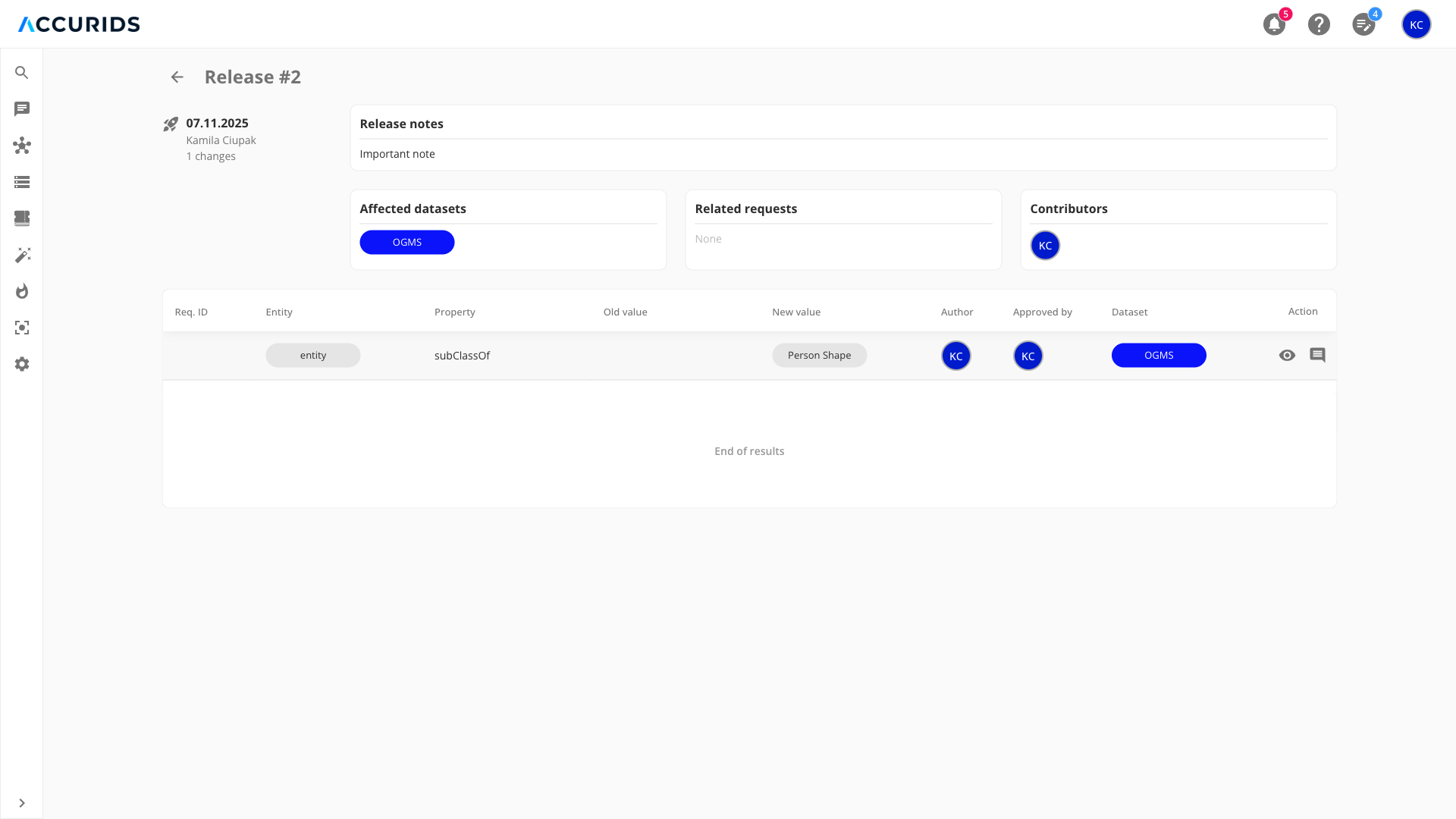
Header Information:
- Release number and date
- Author and number of changes included
- Release notes
Summary Sections:
- Affected datasets: Shows all datasets modified in this release
- Related requests: Lists all workflow request numbers included
- Contributors: Shows all users who contributed changes
Changes Table:
The changes table displays all property changes included in the release with the following columns:
- Req. ID: Workflow request identifier
- Entity: The entity that was modified
- Property: The property that was changed
- Old value: Previous value of the property
- New value: Updated value of the property
- Author: User who created the change
- Approved by: User who approved the change
- Dataset: Dataset(s) the entity belongs to
- Action: Eye icon to view the entity and comment icon to access the discussion thread
Workflow Requests
Workflow Requests provide a structured way to organize and track related changes within Accurids. Each pending change can be associated with a workflow request ticket, allowing for better organization and traceability of modifications:
-
Assignment Methods:
- Individual Assignment: Use the dropdown menu in each row to assign a change to a specific workflow request
- Bulk Assignment: Select multiple changes using the selection options (single, multiple, or all) and assign them to a workflow request using the bulk actions menu at the bottom of the table
-
Relationship:
- Multiple changes can be linked to the same workflow request ticket
- Each change can only be assigned to one workflow request at a time
- Changes can be reassigned to different workflow requests as needed
-
Filtering: Users can filter pending changes by workflow request to see all related modifications
Filtering Options
Users can filter pending changes in two ways:
Quick Filters
The top-right section of the interface provides quick access to commonly used filters:
- Dataset selection (e.g., "doid")
- Request number (e.g., "#4")
- "Clear all filters" button to reset all applied filters
Advanced Filtering
Clicking the funnel icon opens a comprehensive filter dialog that allows users to:
- Select multiple workflow requests
- Filter by one or more datasets
- Search for specific entities
- Filter by user roles:
- Author: Shows changes created by specific users
- Approved by: Shows changes approved by specific users
- Published by: Shows changes published by specific users
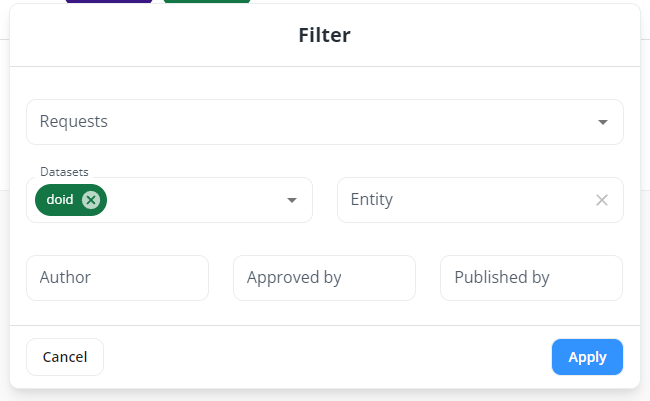
All filters are applied across all tabs, helping users maintain consistent views while navigating through different stages of the workflow.
Navigation
Infinite Scroll
- Tables implement infinite scroll for efficient data loading
- Initially loads a subset of records
- Automatically fetches more data as users scroll
- Ensures optimal performance with large datasets
Commenting System
Users can engage in discussions about specific changes: 1. Click the envelope icon in the action column 2. Add comments to provide feedback or request clarification 3. All comments are preserved with the change history
Change Management
Bulk Actions
- Select individual or multiple changes
- Use "Select All" to choose all matching changes
- Includes unloaded records matching current filters
- Selection applies to all matching records within the current tab, even those not yet loaded due to infinite scroll
- Selection is limited to the current tab's table and does not affect other tabs
- Bulk actions appear at the bottom of the page
Stage Transitions
Moving Forward
- Select desired changes
- Click appropriate action button
- For publishing:
- Review summary popup showing:
- Contributing authors
- Affected datasets
- Related workflow requests
- Enter mandatory release notes
- Confirm publication
Moving Backward
- Changes can be moved to previous stages
- Exceptions:
- Draft stage changes are deleted when moved backward
- Approved changes, when published, are permanently applied to RDF datasets
Individual Actions
- Use action column buttons for single-change operations
- Provides quick access to common transitions
- Available actions depend on current stage and user permissions
Permissions
Access to different features requires appropriate permissions:
-
Contributors can:
- View submitted and approved changes
- Participate in reviews
- Add comments
-
Admins can:
- Perform all contributor actions
- Move changes between stages
- Publish changes
- Manage release processes