Modules
Accurids supports optional platform modules: applications that are shipped with your deployment and extend the core platform, for example with industry-specific functionality. A module runs inside Accurids, uses core data and functions on behalf of the logged-in user, and honors that user's permissions. Modules are versioned and released independently of the Accurids platform.
For how users work with module apps, see Module Apps in the User Guide.
Reviewing Installed Modules
Open the Admin view. Modules have their own top-level Modules node in the admin sidebar (no longer a single flat Administration > Modules entry). This node requires the Admin role and contains:
- Overview - the module table (see below).
- One entry per installed module, leading to that module's own configuration page(s).
Select Modules > Overview to see the module table. It lists every installed module with:
- Module: the display name and the stable module id.
- Description: what the module provides.
- Version: the module's own version, independent of the Accurids platform version.
- Enabled: a switch to turn the module on or off at runtime (see Enabling and Disabling Modules).
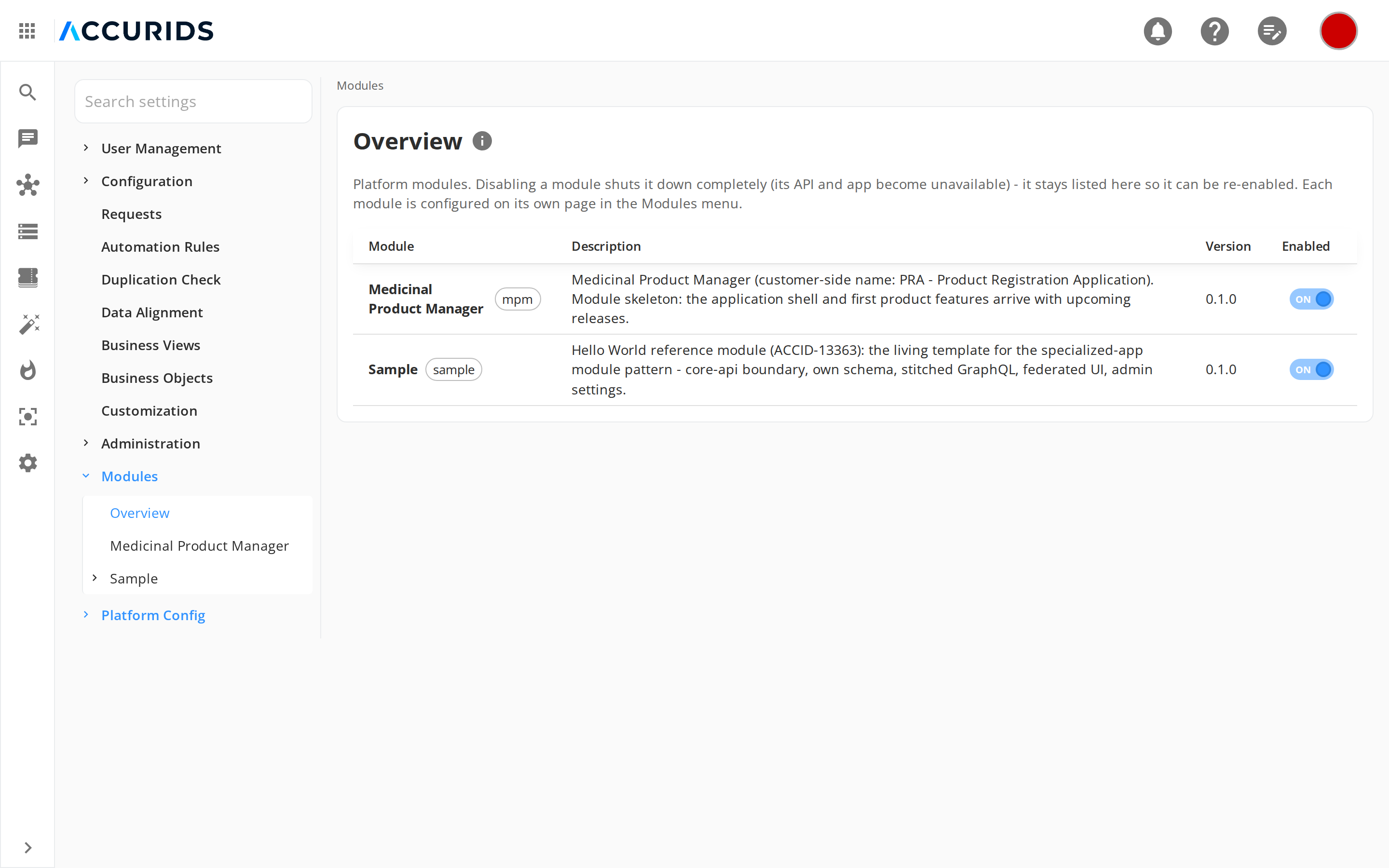
Both enabled and disabled modules stay listed here, so a module you switched off can always be switched back on.
Configuring a Module
Each module declares which settings it supports, grouped into named configuration sections. Configuration lives on the module's own page under the Modules menu - there is no separate Configure button or pop-up dialog. How a module appears under Modules depends on how many configuration sections it declares:
- One section - the module entry opens directly to a single configuration page.
- Several sections - the module entry expands into a node with one page per section (for example, the Sample module has a General and a Display section).
- No configurable settings - the module entry opens an info page stating "This module has no configurable settings"; such a module is still enabled and disabled from the Overview page.
Each configuration page is generated from the module's own settings schema, so every module is configured through the same form style without module-specific admin screens.
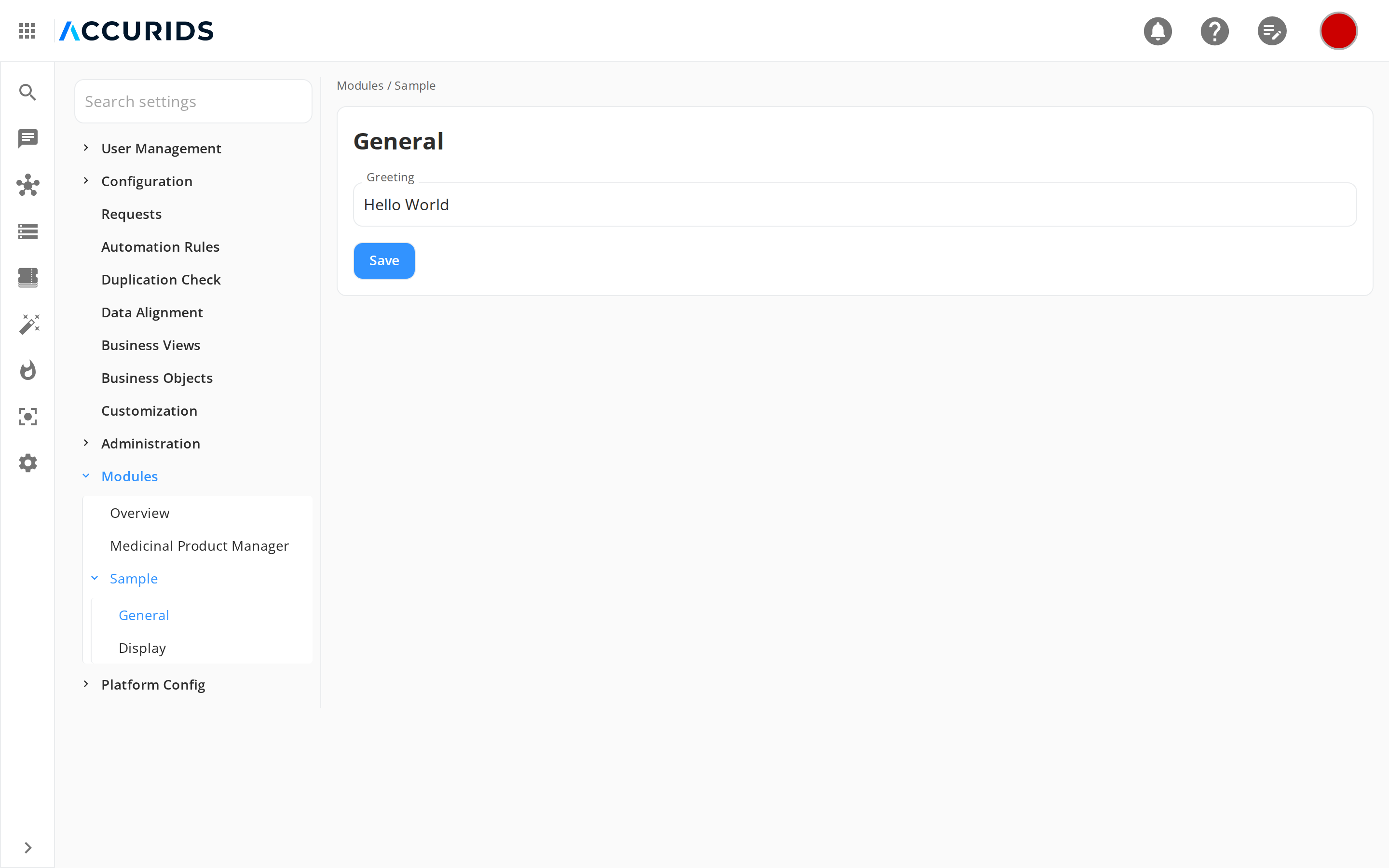
Change the values and click Save. Settings are persisted per module and section, and take effect without a restart.
Enabling and Disabling Modules
Whether a module that ships with your deployment starts enabled depends on the module: most start enabled, but some ship disabled by default and must be turned on by an administrator before they can be used. There are two ways a module's state is controlled.
At runtime, from the Overview page. Toggle a module's Enabled switch to start or stop it without restarting Accurids. Disabling a module shuts it down completely: its background services stop, and its app (in the app switcher) and its API become unavailable. The module still appears on the Overview page so you can re-enable it later. This choice is stored and survives a restart - it takes precedence over the boot default below.
At boot, with a configuration variable. The boot default for a module is set with a configuration variable when starting Accurids:
| Variable | default value | Description |
|---|---|---|
accurids.modules.<module-id>.enabled |
true |
Whether the module <module-id> starts enabled. true is the platform default, but a module may ship with a different default in the standard deployment configuration. A runtime choice made on the Overview page overrides this. |
A disabled module stays listed on the Overview page (so it can be re-enabled), but its app is not offered in the app switcher and its API is not available. When no module app is active, the app switcher is hidden entirely.